
How to Optimize Your Google Business Profile
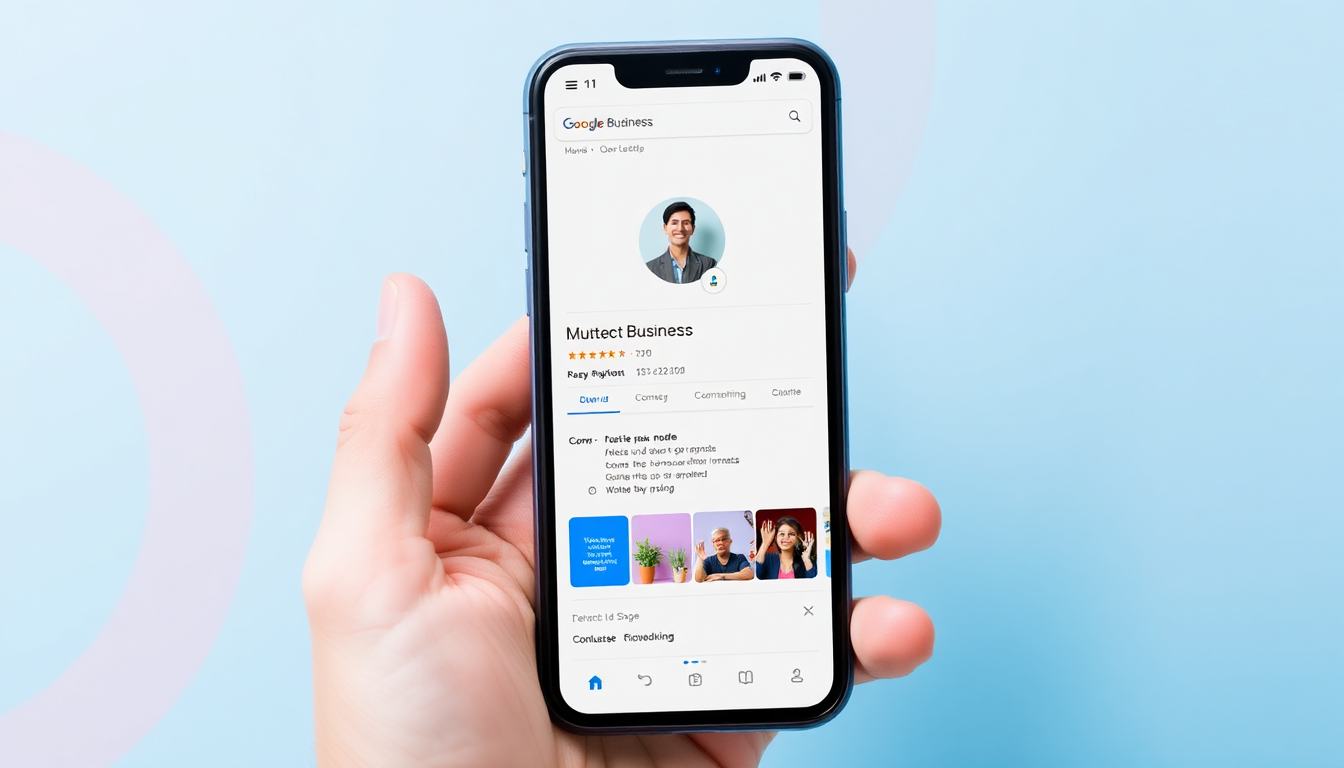
When someone searches for "plumber near me" or "dentist [your city]," what shows up first? Often, it's not websites—it's Google Business Profiles (formerly Google My Business).
These profiles appear in the "Local Pack" (the map and listings at the top of search results) and can be the difference between a customer calling you or your competitor.
The good news? You can optimize your profile to show up more often and attract more customers. Here's how.
What Is a Google Business Profile?
Think of it as your business's listing on Google. It includes:
- Your business name, address, and phone number
- Your hours of operation
- Photos of your business, work, or team
- Customer reviews and ratings
- Posts and updates
- Questions and answers
And here's the key: it's free. Anyone can create one, but not everyone optimizes it properly.
Why it matters:
Studies show that profiles with complete information get 7x more clicks than incomplete ones. And 76% of people who search for something nearby visit a business within 24 hours.
Step 1: Claim and Verify Your Profile
If you haven't already, go to google.com/business and claim your profile. Google will verify you own the business—usually by sending a postcard with a code to your business address.
Pro tip:
- Use your real business address (PO boxes often don't qualify)
- If you work from home but serve clients at their locations, you can hide your address and set a service area instead
Step 2: Complete EVERY Field
Google rewards complete profiles with better visibility. Don't leave anything blank:
Essential information:
- Business name: Use your real business name (don't try to stuff keywords here—Google may penalize you)
- Address: Exactly as it appears everywhere else (consistency matters for SEO)
- Phone number: A local number is best
- Website: Link to your website
- Hours: Include regular hours and special holiday hours
- Category: Choose the most accurate primary category (you can add secondary categories too)
- Attributes: Things like "free Wi-Fi," "wheelchair accessible," "online appointments"—add as many as apply
Step 3: Choose the Right Categories
Your primary category is crucial—it tells Google what your business is. Be specific:
Bad examples:
- "Contractor" (too broad)
- "Health" (way too broad)
Good examples:
- "Electrician"
- "Plumber"
- "Landscaper"
- "Family Dentist"
- "Life Coach"
You can also add up to 9 secondary categories. For example, a contractor might add "Painter," "Remodeler," and "Handyman" as secondary options.
Step 4: Add High-Quality Photos
Businesses with photos get 42% more requests for directions and 35% more clicks to their websites.
What to include:
- Logo: Your business logo
- Cover photo: The main image for your profile
- Interior/exterior photos: Show your location
- Work photos: Examples of your work (crucial for contractors, landscapers, etc.)
- Team photos: Put faces to the name
- Product photos: If you sell products
Pro tip:
Add new photos regularly. Google likes active profiles.
Step 5: Encourage and Respond to Reviews
Reviews are incredibly important for local SEO. Businesses with more positive reviews rank higher.
How to get more reviews:
- Ask happy customers directly (a simple email or text works)
- Create a link that takes customers directly to your review page
- Make it easy—don't make them hunt for where to leave a review
How to respond:
- Positive reviews: Thank them, be personal, mention something specific from their review
- Negative reviews: Stay calm, apologize if appropriate, offer to make things right offline
Real example:
A cleaning company started asking every happy client for a review. In 3 months, they went from 8 reviews to 47. Their phone calls from Google searches doubled.
Step 6: Use Google Posts
Google Posts are like social media updates that appear in your business profile. You can share:
- Special offers
- New products or services
- Events
- News about your business
Posts stay active for 7 days (or until the event date) and keep your profile fresh.
Step 7: Add Products and Services
You can list specific products or services directly on your profile. For example:
- An electrician might list "Residential Wiring," "Panel Upgrades," "Emergency Repairs"
- A dentist might list "Teeth Cleaning," "Fillings," "Crowns"
- A restaurant might list popular dishes
This helps customers understand exactly what you offer and can improve your visibility for those specific searches.
Step 8: Monitor Your Insights
Google provides valuable data about how customers find and interact with your profile:
- How many people searched for you
- What keywords they used
- How many clicked for directions
- How many called you
- How many visited your website
Use this data to understand what's working and what needs improvement.
Step 9: Keep Everything Consistent
This is crucial: your name, address, and phone number (NAP) must be identical everywhere they appear—your website, your Google profile, Yelp, Facebook, etc.
Even small differences (like "St" vs "Street") can confuse Google and hurt your rankings.
Step 10: Link to Your Website
Make sure your Google profile links to your website. And on your website, make sure you have your Google Business profile linked or embedded. This connection strengthens both.
Need Help With Your Google Profile?
Not sure if your profile is optimized? My Visibility Report ($100) includes a complete review of your Google Business profile with specific recommendations to improve it.

Written by Stephanie
Freelance web designer helping small businesses across Canada get found online. I build modern, mobile-friendly websites that attract customers.
You might also like
5 min read
6 min read